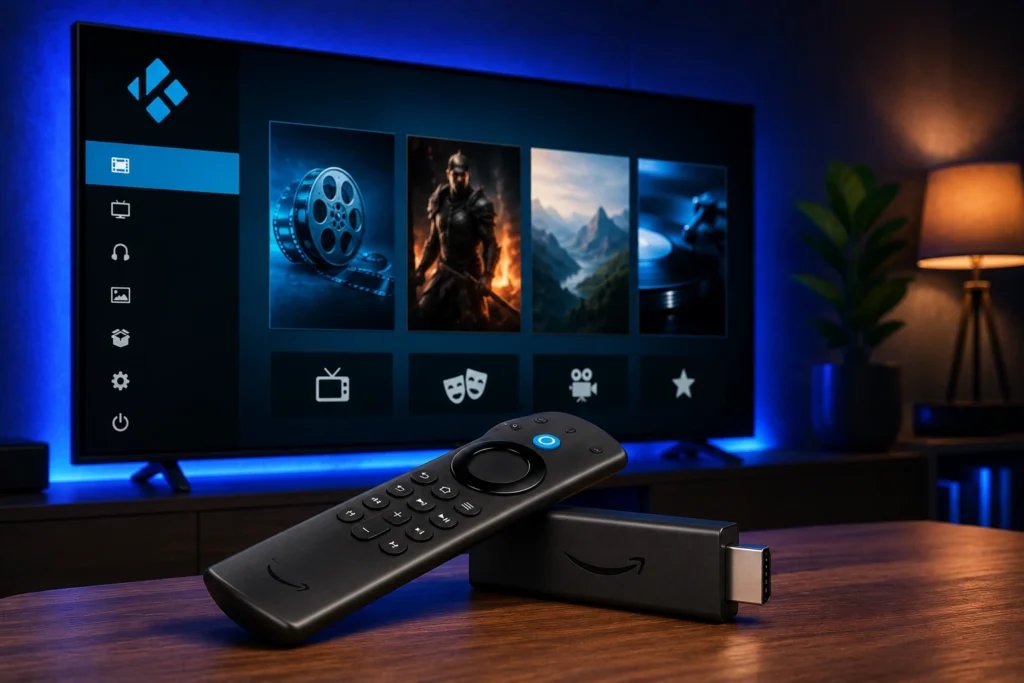
Why Install Kodi on Firestick?
Kodi on Firestick gives you a unified interface to manage and play all your media content. Key benefits include: If you are researching install kodi firestick, this guide covers everything you need to know.

- Centralized media library — Organize movies, TV shows, music, and photos in one place
- Customizable interface — Skins and addons let you tailor the experience
- Playlist support — Use M3U and Xtream Codes playlists for IPTV streaming
- Multi-platform — Sync your library across devices
Method 1: Install Kodi on Firestick Using Downloader (Easiest)
The Downloader app is the most popular method to install Kodi on Firestick. Follow these steps:
- On your Firestick home screen, go to Settings → My Fire TV → Developer Options
- Turn Apps from Unknown Sources to ON (this allows sideloading)
- Go back to the home screen and search for the Downloader app using the search icon
- Install Downloader from the Amazon App Store
- Open Downloader and enter the official Kodi APK URL in the address bar
- Wait for the download to complete, then select Install
- Once installed, select Open or return to your apps list to launch Kodi
After installation, you can add your IPTV playlists or configure Kodi with your preferred addons.
Method 2: Install Kodi via ADB Sideloading
For advanced users, ADB (Android Debug Bridge) offers an alternative method:
- Enable ADB Debugging on your Firestick: Settings → My Fire TV → Developer Options → ADB Debugging → ON
- Note your Firestick IP address: Settings → Network → About
- On your computer, download the Kodi APK and use ADB:
adb connect YOUR_FIRESTICK_IPthenadb install kodi.apk
Troubleshooting Common Issues
App Not Installing
If Kodi fails to install, ensure you have enough storage space. Go to Settings → My Fire TV → About → Storage to check. Delete unused apps if necessary.
Kodi Freezes on Startup
This can happen on first run as Kodi downloads resources. Wait 2-3 minutes. If it persists, clear Kodi cache in Settings → Applications → Manage Installed Applications → Kodi → Clear Cache.
Playlist Not Working
If your IPTV playlist works on your computer but not on Firestick, check your network connection. Some ISPs block IPTV traffic — try using a VPN or contact your provider.
Next Steps After Installing Kodi
Once Kodi is installed, you will want to add your playlists to start streaming. For the best experience, consider using an IPTV service and activating your device through our activation page.
For a simpler alternative that works out of the box, try KODIPTV Player — a dedicated IPTV player with built-in playlist management and multi-platform support Download Kodi IPTV Player on Google Play.
Method 1: Install Kodi from the Amazon App Store
The easiest way to install Kodi on Firestick is directly from the Amazon App Store. On your Firestick home screen, navigate to the Find icon (magnifying glass) on the left sidebar. Select Search and type “Kodi” using the on-screen keyboard. The official Kodi app should appear in the search results. Select it and click the Get or Download button. The installation will begin automatically, and Kodi will appear in Your Apps & Channels once the download completes. This method is the safest because you are installing the official version directly from Amazon’s curated store.
However, the Amazon App Store version may not always be the latest release. Amazon sometimes takes time to approve updates, meaning you could be using an older version of Kodi. Older versions may not be compatible with the latest addons and may have security vulnerabilities. If you want the most recent version with all the latest features and security patches, use the sideloading method described below. The Amazon Store version is still perfectly functional for basic use and is recommended for users who prefer simplicity and security.
Method 2: Install Kodi via Downloader (Latest Version)
To install the latest version of Kodi on Firestick, use the Downloader app. First, enable Apps from Unknown Sources by going to Settings > My Fire TV > Developer Options > Apps from Unknown Sources and turning it ON. Then install the Downloader app from the Amazon App Store. Open Downloader and enter the official Kodi download URL: https://kodi.tv/download. The Downloader will open the Kodi website. Navigate to the Android section and select the ARM APK file (Firestick uses ARM architecture, not x86). Download the APK file and click Install when prompted.
After installation, Kodi will appear in Your Apps & Channels. You can delete the APK file in Downloader to free up storage space. Open Downloader, go to Files, and delete the Kodi APK. This method ensures you have the absolute latest version of Kodi with all new features, performance improvements, and security patches. It also gives you access to Kodi release candidates and nightly builds if you want to test upcoming features. The sideloading process takes only a few extra minutes and is well worth the effort for the latest Kodi experience.
Setting Up Kodi After Installation
Once you install Kodi on Firestick, the initial setup involves a few important steps. Launch Kodi and it will display the default Estuary skin. Go to the gear icon (Settings) > System > Display and adjust the resolution to match your TV. For 4K Firesticks, select 3840×2160 for the best picture quality. Next, go to Settings > Interface > Regional and set your language and location. This ensures correct date formats, temperature units, and region-specific content recommendations.
Now enable addon installation from unknown sources. Go to Settings > System > Addons and toggle Unknown Sources to ON. Without this, you cannot install third-party addons. Next, you may want to install a VPN addon or configure your existing VPN service within Kodi. Go to Settings > System > Network and set up your VPN proxy if needed. Finally, install a file manager addon or configure Kodi’s built-in file manager to access your network shares. Go to Settings > File Manager > Add Source and enter the path to your media server or network drive. Kodi will scan the added source and populate your library with movie and TV show metadata automatically.
Best Kodi Builds for Firestick
A Kodi build is a pre-configured collection of addons, skins, and settings that transforms Kodi into a specialized streaming platform. The best Kodi builds for Firestick are optimized for the device’s hardware limitations. Diggz Xenon is one of the most popular builds for Firestick because it is lightweight, fast, and includes a curated selection of addons for movies, TV shows, live sports, and IPTV. It features a clean, TV-friendly interface that is easy to navigate with a remote. The Crew build is another excellent option, focusing on reliable addons with minimal bloatware.
To install a build, you first need to install a build manager addon like OpenWizard. Download the OpenWizard zip file from a trusted source and install it via Install from Zip File in Kodi’s addon browser. Launch OpenWizard and browse the available builds section. Select the build you want and click Install. OpenWizard will download and apply the build configuration automatically, restarting Kodi when complete. Keep in mind that builds can consume significant storage space, so monitor your Firestick’s available storage and clear Kodi’s cache regularly using the maintenance tools included in most builds.
How to Install Kodi IPTV Player on Firestick: The Better Alternative
While learning how to install Kodi on Firestick is valuable, many users find that a dedicated IPTV player offers a simpler and more reliable streaming experience. Kodi IPTV Player is designed specifically for Firestick and other streaming devices, providing native support for M3U playlists and Xtream Codes API integration without the need for additional addons. Installation is even easier than installing Kodi: simply visit the Amazon App Store on your Firestick, search for Kodi IPTV Player, and click Download. The app installs in under 30 seconds and requires no configuration. Add your IPTV playlist URL or Xtream Codes credentials, activate your device, and start streaming live TV, sports, and movies immediately.
Whether you are a new Firestick user or an experienced streamer, understanding install kodi on firestick will help you get the most from your device. With the right setup, install kodi on firestick becomes simple and straightforward.
Frequently Asked Questions
Can I install Kodi on any Firestick model?
Yes, Kodi can be installed on all Firestick models including Firestick Lite, 4K, and 4K Max. The installation process is the same across all models, though performance varies.
Do I need a computer to install Kodi on Firestick?
No, you can install Kodi directly on Firestick using the Downloader app. Simply enable Apps from Unknown Sources, install Downloader, and enter the Kodi download URL.
Is installing Kodi on Firestick legal?
Yes, installing Kodi on Firestick is completely legal. Kodi is an open-source media player. The legality depends on what addons and content you use with it.
How much space does Kodi take on Firestick?
Kodi itself takes about 200-300 MB of storage. With addons, builds, and cache, it can grow to 1-2 GB. Regular cache clearing helps manage storage.
Why is Kodi not installing on my Firestick?
Common reasons include insufficient storage, not enabling Unknown Sources, or a corrupted download file. Try freeing up space and ensuring your Firestick OS is updated.