
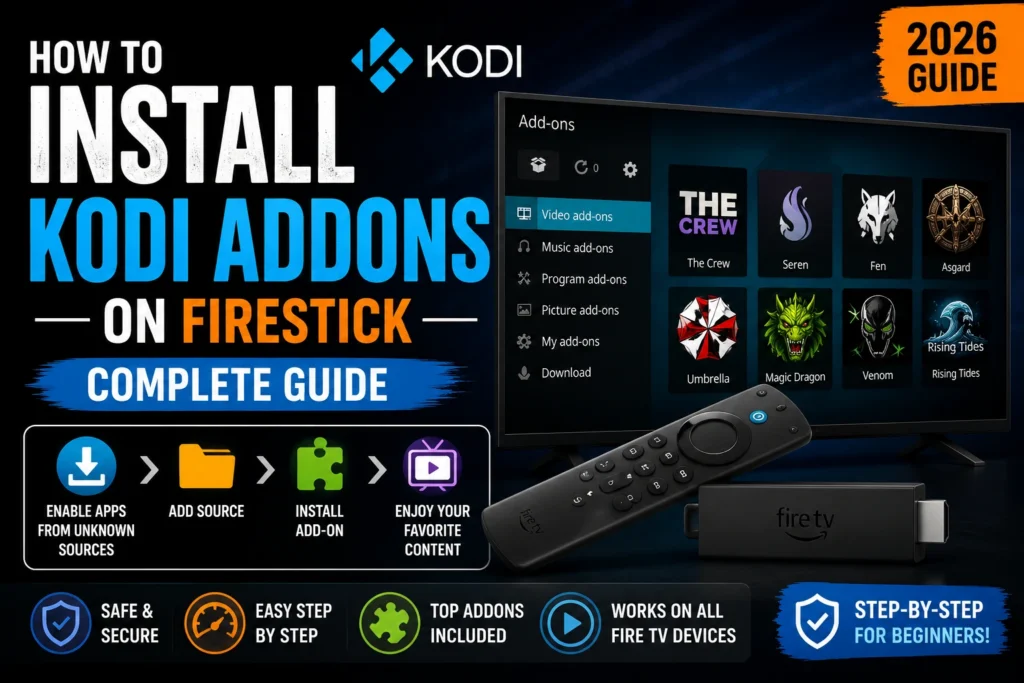

Install Kodi addons Firestick: Understanding Kodi Addons
Addons are plugins that add new features or content sources to Kodi. They are organized into categories including Video, Music, Program, and Skin addons. Most addons are installed through repositories — collections of addons maintained by developers.

How to Install Kodi Addons on Firestick
Method 1: Install Addons from a Repository
This is the safest and most common method:
- Open Kodi on your Firestick
- Go to the Settings (gear icon) → File Manager
- Select Add Source and enter the repository URL (provided by the addon developer)
- Go back to the home screen and select Addons from the left menu
- Click the Package Installer icon (open box at the top)
- Select Install from ZIP File and choose the repository ZIP you added
- Go back and select Install from Repository
- Choose the installed repository, browse to the addon category, and select your addon
- Click Install and wait for the notification
Method 2: Install Addons from ZIP File
For addons that provide direct ZIP downloads:
- Download the addon ZIP file using the Downloader app on Firestick
- In Kodi, go to Addons → Package Installer → Install from ZIP File
- Navigate to the downloaded ZIP file and select it
- Wait for the “Addon installed” notification
Best Kodi Addons for Firestick
Video Addons
- The Crew — Movies, TV shows, live sports, and IPTV
- Umbrella — Popular for movies and TV with Real-Debrid support
- Elementum — Torrent streaming integrated into Kodi
IPTV and Live TV
- IPTV Simple Client — Native IPTV support for M3U playlists
- DaddyLive — Live sports and entertainment channels
Program Addons
- Real-Debrid — Premium link hosting for better streams
- EZ Maintenance+ — Clean Kodi cache and optimize performance
- Ares Wizard — Maintenance tool for backups and builds
Troubleshooting Addon Installation
“Failed to Install a Dependency” Error
This usually means Kodi cannot find a required dependency. Try installing the repository that contains the missing dependency first, or update to the latest Kodi version Install Kodi Addons.
Addon Not Showing After Installation
Go to Addons → My Addons and check if it appears under the correct category. You may need to restart Kodi for some addons to appear Install Kodi Addons.
Important Note About Addons and Content
Kodi addons can access content from various sources. Please review our terms regarding copyright compliance. KODIPTV Player provides a legal IPTV streaming experience without the complexity of managing addons — try it today for a hassle-free alternative.
What Are Kodi Addons and Why Install Them on Firestick?
Kodi addons are plugin extensions that expand what the Kodi media center can do. They add functionality like streaming movies and TV shows, watching live television, listening to music, viewing photos, and playing video games. Without addons, Kodi is a media player that only plays files you already have. With addons, it becomes a complete entertainment hub that can access content from across the internet. Installing Kodi addons on Firestick transforms the device into a powerful streaming machine capable of rivaling any cable subscription.
There are thousands of addons available, categorized into video addons, music addons, program addons, skin addons, and game addons. Video addons are the most popular category, providing access to movies, TV series, live sports, news channels, and documentaries. Some addons scrape links from various sources across the web, while others connect to premium IPTV services. Installing the right combination of Kodi addons on your Firestick gives you access to virtually unlimited content.
How to Add Repositories and Install Addons on Firestick
To install Kodi addons on Firestick, you first need to enable Unknown Sources in Kodi. Open Kodi, go to the gear icon (Settings) > System > Addons, and toggle Unknown Sources to ON. This allows you to install addons from third-party repositories. The next step is to add a repository. A repository is a collection of addons maintained by a developer or team. Go to the gear icon > File Manager > Add Source, and enter the URL of the repository you want to add. Name the source and save it.
Once the repository is added, go back to the Kodi home screen and select Addons. Click the open box icon (Addon Browser) and select Install from Zip File. Choose the repository source you added earlier and select the repository zip file. After the repository is installed, select Install from Repository, find the repository you just added, browse through the addon categories, and click Install on the addon you want. The addon will download and install automatically. After installation, you can access it from the Addons section on the Kodi home screen.
Safety Tips for Kodi Addons on Firestick
While Kodi addons open up a world of content, safety should always be a priority. Only install addons from well-known, trusted repositories. Avoid addons that promise “fully loaded” content or require you to disable security features. These often contain malware or tracking scripts. Always use a VPN when streaming through third-party Kodi addons. A VPN encrypts your internet traffic and hides your IP address, protecting your privacy from your ISP and potential legal issues. Recommended VPNs for Kodi include NordVPN, Surfshark, and IPVanish, all of which have dedicated Firestick apps.
Regularly clear Kodi’s cache to prevent slowdowns. Go to Settings > File Manager > Profile Directory > Database > Addons.db and delete it occasionally to remove orphaned data. You can also use the OpenWizard addon to clean Kodi’s cache, back up your build, and optimize performance. Keeping your Kodi version updated ensures compatibility with the latest addons and security patches. Outdated Kodi versions can have vulnerabilities that malicious addons exploit.
Frequently Asked Questions
What are Kodi addons and how do they work?
Kodi addons are plugins that extend functionality with streaming content, sports, movies, and TV shows. They connect to various online sources and display content within the Kodi interface.
How do I install Kodi addons on Firestick?
Install Kodi addons by opening Kodi, going to Add-ons, selecting the package installer icon, and choosing "Install from repository." Browse available addons and select Install.
Are Kodi addons legal?
Kodi addons themselves are legal software. However, some addons access copyrighted content without permission. Always use addons that stream content from legitimate sources to stay compliant.
Why are my Kodi addons not working?
Addons may stop working due to outdated versions, broken repository links, or changes in the source website. Try updating the addon, clearing Kodi cache, or reinstalling from a fresh repository.